What’s new

New features and improvements for teams that build training with Vidext.

See who spends your tokens, a tidier Settings, and more

  • See who spends your tokens. On Usage, admins can switch Spend from Latest to People: who spent this period's tokens, most first, with each person's share and what it went on most. Everything your learners spent is one row, Learners, never a learner's name.
  • Settings in four sections. The sidebar is now sorted into Personal, Organization, People and Plan, and every page is laid out the same way.
  • One Brand page. Your brand kit and your pictures of staff, places and drawings now sit on one Brand page. A picture you upload is checked the moment you pick it, so one that does not fit is refused before anything is saved.
  • How others see you. Profile opens with a preview of your name, picture and colour as they look in Members, in the chat and on a conversation, and it changes as you edit them.
Learn more

Let agents check your courses on a schedule

Checking your sources every week, or refreshing a course when a policy changes, used to mean asking in the chat each time. Now an agent does it on a schedule. Pick a template such as Policy change watch, or choose New agent and tell the chat what it should do and when.

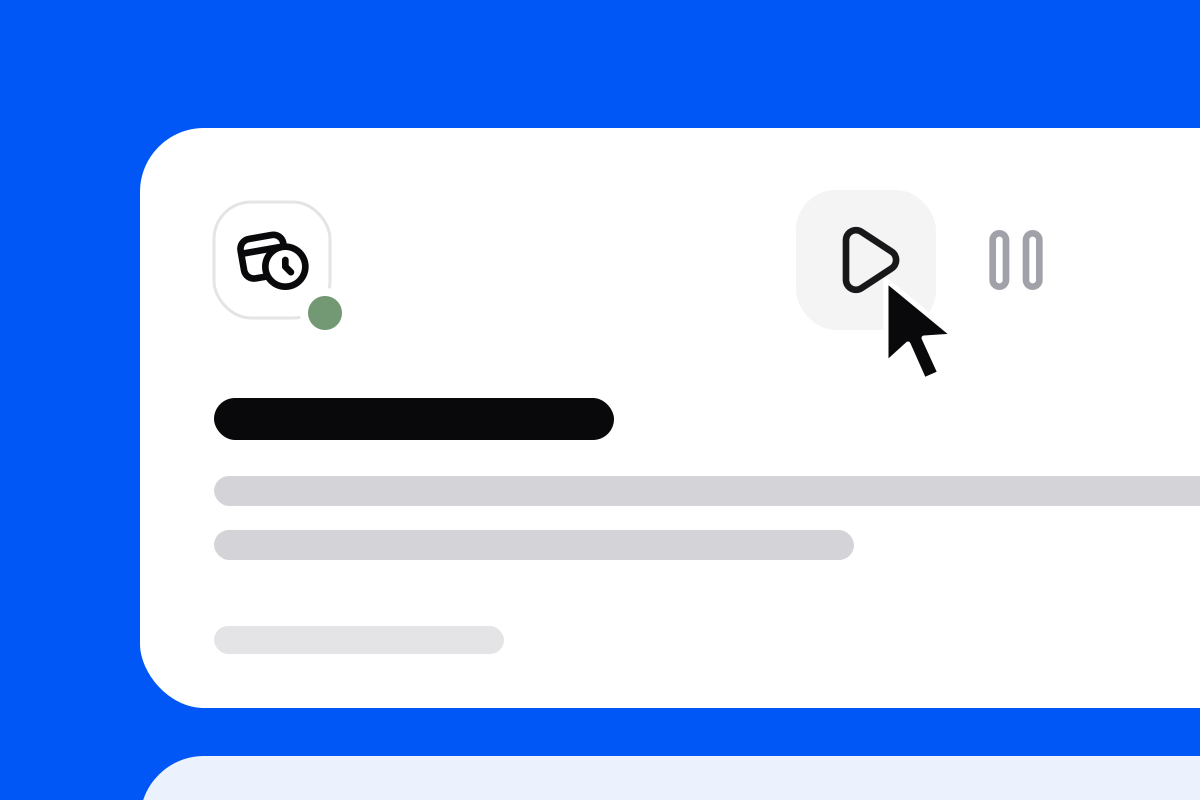
Nothing it changes reaches your content until you accept it. On the Agents page, point at an agent's card to run it now or pause it.

Learn more

Use Vidext in Claude and ChatGPT

Connecting Vidext to an AI assistant used to start with a trip to Settings. Now choose Onboard your agent on Home to copy a prompt, and paste it in Claude or ChatGPT: it walks you through adding Vidext as a connector. From there, ask, say, "Ask Vidext to draft a short module on our expense policy for new hires."

Don't need it? Hide the button. Integrations, under AI apps, keeps the setup for every assistant.

Learn more

A cleaner sidebar, every integration in one place, and more

  • A sidebar sorted for you. Your conversations now sit under Needs you (an agent has a question), Open (still going, or active in the last three days) and a folded Recent. Each heading folds and stays as you left it, and Ctrl+K (⌘K on a Mac) opens Recent.
  • One tag for every module. Each module carries the same quiet tag, Module or Podcast, in the sidebar, on its course page and on your learners' covers.
  • Archive in one click. Archiving or leaving a conversation takes it off the sidebar the moment you click, with no wait.
  • Integrations on Home. A new Integrations page in Home's sidebar shows everything Vidext connects to: what you've connected first, then what you can add, from knowledge sources and AI assistants to, for admins, your organization's learning platforms. Each card opens the same setup as Settings, and Request asks us for one that isn't listed.
  • Files from your sources with /. Type / in the message field, pick Google Drive, Microsoft 365 or Notion, and choose a file to add it to your message.
Learn more

Build a podcast your learners listen to

A podcast used to be something you could hear while writing a module, never something your learners got. Now ask in the chat for a module as a podcast, and it is built like any other: one narrated episode with its own cover, published with its course.

Learners listen with large captions that follow the voice, and tap a line to play from there. Its questions come after the episode, and finishing it counts toward the course.

Make a narrator voice with an accent

When none of your voices fits, describe the one you want. Ask in the chat, for example an English narrator with a slight French accent, a warm woman in her forties, or click New voice on a module's Voice tab.

The takes play right in the chat. Keep the one you like and give it a name: it joins your organization's voices and narrates the modules you choose.

  • Say the accent in words: where the speaker is from and the language they speak.
  • One language per voice: it speaks the language of the course you made it for, and appears on that language's Voice tab.
  • Made from a description only: a voice is never copied from a real person.
  • Remove it from the chat: a module built with it keeps its narration until it is built again.
Learn more

A new learning experience for your learners

Learners used to land on a plain list of courses, with nothing saying what mattered or by when. Now they have a space of their own:

  • Home leads with what's due and what's late.
  • My learning holds every course, with a calendar of deadlines.
  • Required courses: on a course's page, choose By when, within a number of days or by a date.
  • Help that knows their courses: ask What's due this week?, and a module tutor that answers more than the module says.
Learn more

Record a web app tutorial by naming the app

Recording a tutorial used to take the app's exact address, and sites like ChatGPT blocked the recording. Now ask in the chat for, say, "a tutorial on starting a chat in ChatGPT": Vidext's agents open the app, take the steps and record them with narration, in 1080p. A website tour scrolls down the page and points at each section.

If a site still blocks it, the agent says so, and you can attach a screen recording as an MP4 instead.

Learn more

Build modules from your AI assistant

A connected assistant could search your sources and list your modules, but building one still meant switching to Vidext. Now ask it, say, "Ask Vidext to draft a short module on our expense policy for new hires." Vidext's agents plan and build it as they do in the chat, your assistant brings their questions back for you to answer, and you get a link when the module is ready.

Connect your assistant from Settings → MCP. Publishing a course stays in Vidext.

Learn more

Ask about your Drive and Notion without naming the file

Finding a fact in a big Drive or Notion used to mean knowing which file held it. Now just ask. The agents search your connected Drive and Notion, read the likeliest documents and answer with the fact and where it came from, or say plainly what they searched and didn't find.

They find files even when you use another word, another language or a typo, and go through a big folder page by page. They remember how your Drive and Notion are organized, for you only and in every chat, so the next question is faster. New and edited files are picked up, and disconnecting a source clears what they remembered about it.

A new Courses page, with a page for every course

Courses now reads like Home. Waiting on you comes first, then your published courses, then your drafts. A course's menu there also has Duplicate, for a draft copy you can change on its own.

Open a course and its page starts on what learners will see: its cover, where it stands and the one step it needs next, such as Publish. Its teams sit right there, and its modules follow in a list, in the order learners take them. To change a course, Edit in chat takes you back to the conversation that built it.

Learn more

Build courses from your Google Drive, Microsoft and Notion

Building a course from what you keep in Drive, Teams or Notion used to mean downloading each file and attaching it. Now connect the service, and the agents search and read it for you: Drive files, Teams conversations, OneDrive and SharePoint, your Notion pages, and Teams and Google Meet recordings with their transcripts. Drive videos up to 1 GB and audio files work too.

Paste a link in the chat, and if that service isn't connected the agents offer to connect it. You can also connect from the chat's + button or from Settings → Connectors. Every connection is read-only.

Learn more

See and change every scene right in the studio

Changing how a module looks used to mean asking in the chat and waiting. Now click All scenes at the top of the studio to see every scene at once, and click one to open it. Open a screen's layout button to draw it another way, say as a checklist instead of cards. Click a picture and choose Change picture to swap it for an earlier take, a gallery image or a photo of yours. Each change shows at once.

Learn more

Connect sources from one card, ask before long videos, and more

  • One card to connect a source. When the agents need a service you haven't connected, one card in the chat lists the options in your language, and picking one starts the connection. You get one card per message, even when you share files and a link together, and asking to connect a source always brings it up, even after “Not now”.
  • Offers you can switch off. When the agents offer to connect a source, choose “Do not show this again”, or ask them to stop suggesting and a card lets you turn the offers off. They then ask you for the file instead.
  • A question before slow work. A video over ten minutes isn't watched until you say yes, and the agents tell you roughly how long it takes. Files they can't read are skipped, with the reason.
  • One Google sign-in. A first Google connection asks for Drive, Meet and calendar events together. Untick Meet and Drive still works. A pasted Meet link offers Meet access by name.
  • Clearer permissions. Each connector in Settings → Connectors lists what it can read, and opens again after you sign in so you can turn on the rest. Microsoft is now called Microsoft 365.

Your own videos and pictures, join requests, and more

  • Your own videos in a module. An MP4 or a YouTube link you attach can now play in a module for learners, in the video's own shape. Say that learners should watch it.
  • Your own pictures in a course. When your files hold photos, screenshots or diagrams, the agents ask whether to adapt them to the course's look, use them as they are, or draw new ones.
  • Ask to join from a link. Someone outside your organization who opens your link can choose Request access, and every admin can approve it from an email.
  • Add a scene from the studio. Each row of a module's script has Add scene after, and the new scene is written straight into the module.
  • The presenter on any scene. Ask the agents to have the presenter say a scene to camera, and they put the presenter there.

Vidext has a new brand

Vidext has a new brand, and one colour leads it. The film tells its story in three lines, in Spanish: blue was first a detail, now it's everywhere, until it became the protagonist.

It closes on the line that sums it up: hola, azul. Hello, blue.

Give your modules your own look

How a module looked used to be out of your hands. Now click Style in the studio and choose a ready-made look, from white screens with touches of your colour to full-colour covers, or create your own with your colours, fonts, corners and titles. The stage changes as you choose, every module in the course follows, and learners see it when you publish.

Styles start from your brand kit, the colours and fonts admins keep in Settings. You can also ask in the chat, for example "use our brand red for the details", and a course about another company can take that company's look.
Learn more

Edit any text of a module right in the studio

Changing a title, a quiz question or a line of narration used to mean asking in the chat and waiting. Now double-click any text in the studio and type over it, like in a document. Press Enter to save, and ⌘Z to undo.

If you change what the voice says, it is recorded again on its own in a few seconds.

Learn more

Tag people with @ in the chat

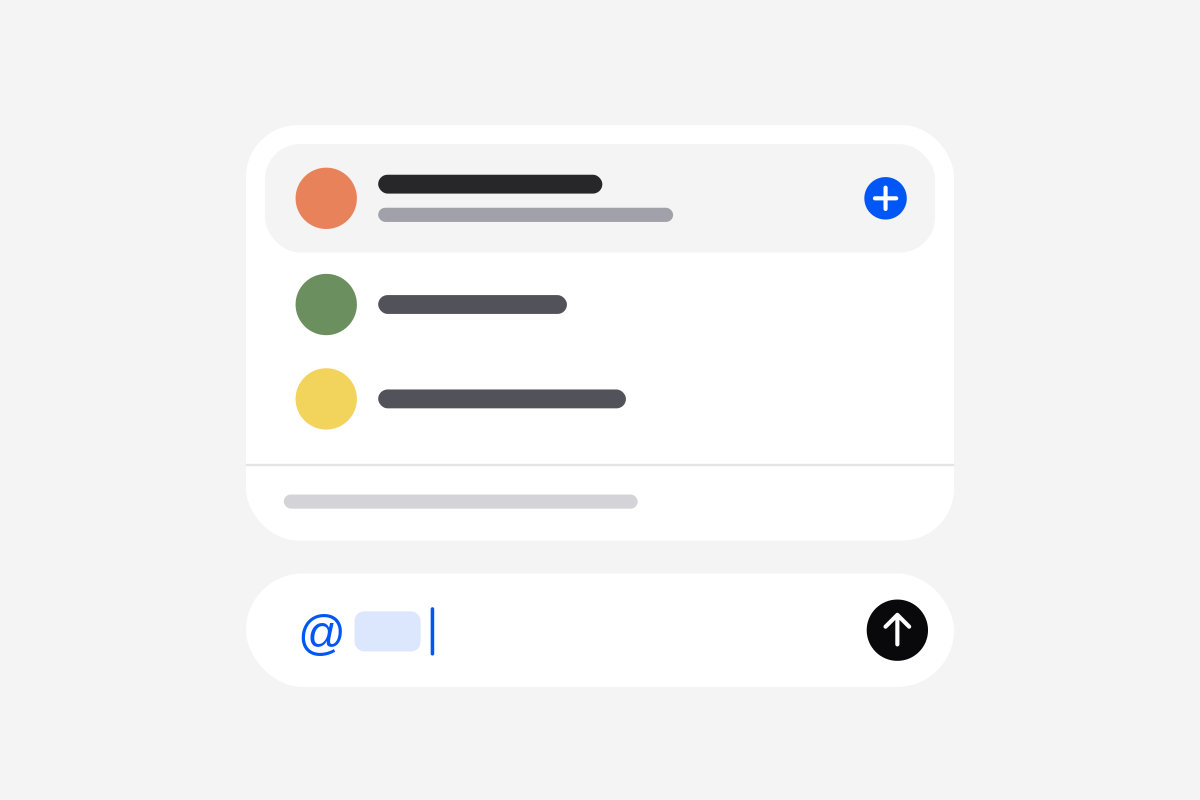
Asking a colleague for something inside a conversation used to mean sharing it from the Share panel and telling them yourself. Now type @ in the message box and pick an admin or member of your organization. A message with a tag is a note between people, so the agents don't answer it.

The person you tag is added to the conversation and sees “Name tagged you” under the Notifications bell. If they turned on email in their notification preferences, an email goes out too.

Learn more

Change a module's pictures from the chat

Not happy with a picture? Ask in the chat for another version, choose between a few options, or bring back one you had before.

You can also upload your own image. It takes that picture's place, cropped to fit, and stays there even if the words on that screen change later.

Learn more

Build and share from one line, attach files any time, and more

  • Build and share from one line. Above a module's message box, one line now tells you where the module stands and gives you the next step: build it, preview it, or share its public link.
  • Attach files any time. You can attach a file while the agents are still answering, or attach one as your answer to their question.
  • See how full a conversation is. In Help and feedback, Context management shows how much room the conversation has left and what the agents are keeping in mind.
  • Setup guide. After your first course, a guide in the sidebar shows what's left to do and ticks each step off on its own.
  • A new sign-in page. Signing in has a new look, and a mistyped code shows up in red straight away, with a button to resend it.